





Staring at bright screens for hours isn't just uncomfortable. It can strain the eyes, disrupt sleep, and even drain the device's battery life faster. That's why dark mode has gone from a trend to a must-have feature across websites, apps, and operating systems.
This guide covers everything from why dark mode matters to the best ways to implement it on your WordPress site. Whether you want a quick toggle switch or a fully branded WordPress dark mode experience, you’ll find the best solution here.
By the end, you’ll have a fully functional dark mode for WordPress that aligns with your brand and enhances user experience.
What Is WordPress Dark Mode?
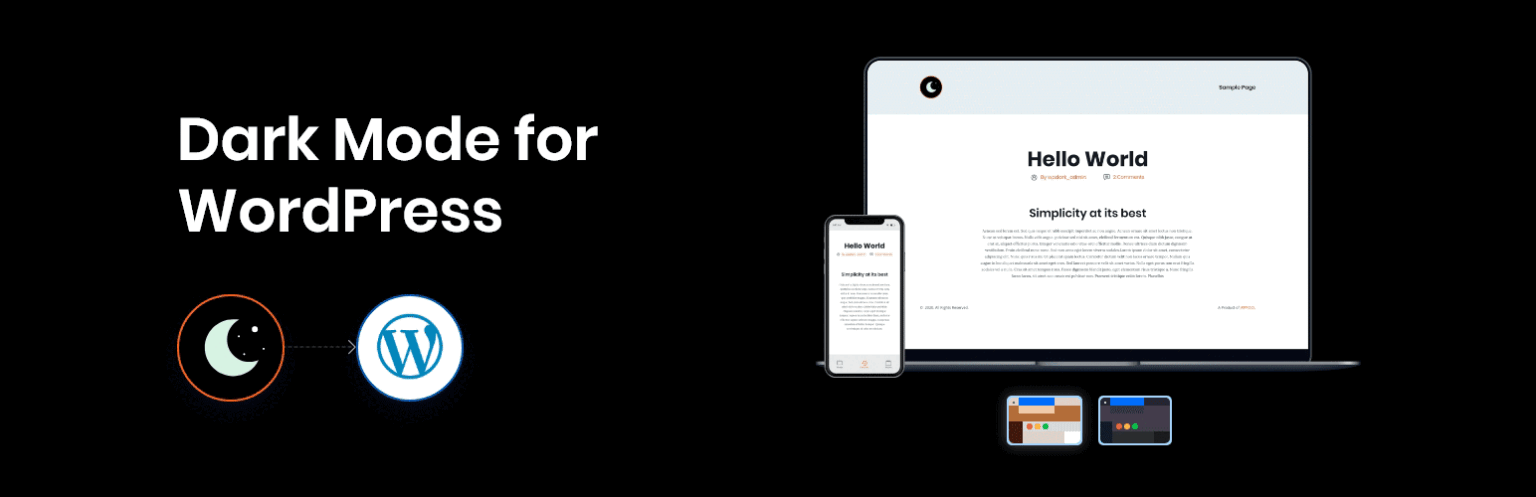
WordPress dark mode is a display setting that replaces the standard light interface with a darker color scheme. It adjusts backgrounds, text, and other UI elements to maintain contrast and readability.
This feature has gained traction across digital platforms. According to a survey by Android Authority, over 80% of users prefer dark mode when given the option. Major tech giants like Google, Apple, and Microsoft have incorporated it into their ecosystems, making it an expected feature rather than a novelty.
Benefits of WordPress Dark Mode
Long hours of screen exposure can cause discomfort, especially when reading on bright white backgrounds. Dark mode for WordPress reduces glare and light emission, helping users read content with less strain.
- Reduces Eye Strain
A bright screen can make browsing in dimly lit conditions uncomfortable. Dark mode provides a more balanced contrast, making text easier to read without overwhelming brightness.
- Enhances Readability in Low-Light Environments
For users with visual impairments, such as light sensitivity or dyslexia, a dark background with well-contrasted text can improve readability.
- Improves Accessibility
Dark mode, particularly on OLED-based displays, reduces the overall power draw.
- Saves Battery Life on OLED and AMOLED Screens
A dark interface gives your WordPress site a polished and tech-forward appearance.
- Provides a Modern and Sleek Design
Streaming platforms use dark themes to reduce eye fatigue and allow users to engage longer.
- Encourages Longer Browsing Sessions
Websites that offer dark mode reduce exposure to blue light, aligning with sleep hygiene recommendations.
- Supports Better Sleep Hygiene
Offering dark mode can make your site stand out.
- Differentiates Your Website from Competitors
How to Add Dark Mode in WordPress: 4 Ways
- Use a WordPress Dark Mode Plugin
- Choose a WordPress Theme with Dark Mode
- Use a JavaScript Library for Dark Mode
- Implement Dark Mode with Custom Code
1. Using a WordPress Dark Mode Plugin
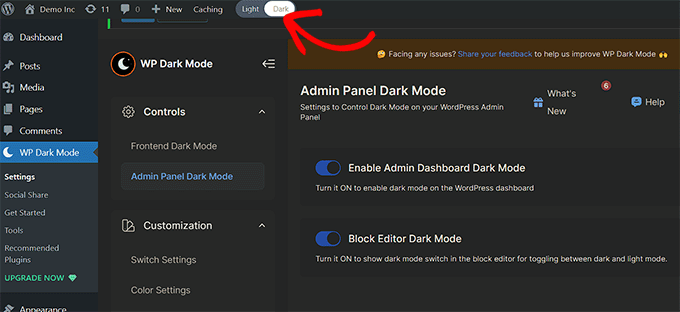
Steps:
- Install the Plugin (
WP Dark Mode,Darklup, etc.) - Customize Preferences
- Add a Toggle Switch
- Test and Optimize
Top Plugins:
- Darklup
- Dracula Dark Mode
- Dark Mode Toggle
2. Choosing a Theme with Built-in Dark Mode
Popular Themes:
- Neve
- OceanWP
- Hestia
- Astra
- GeneratePress
- Kadence
3. Using a JavaScript Library for Dark Mode
Libraries:
darkmode.jsdrkmd.js
Example: ``html <script src="https://cdn.jsdelivr.net/npm/darkmode-js"></script> <script> new Darkmode().showWidget(); </script>
4. Implementing Dark Mode with Custom Code
CSS Example: ``css body.dark-mode { background-color: #121212; color: #ffffff; }
Toggle Button: ``html <button id="darkModeToggle">Toggle Dark Mode</button>
JavaScript: ``js document.getElementById("darkModeToggle").addEventListener("click", function() { document.body.classList.toggle("dark-mode"); });
Remember User Preferences: ``js const darkModePreference = localStorage.getItem("darkMode"); if (darkModePreference === "enabled") { document.body.classList.add("dark-mode"); }
Detect System Preferences: ``js if (window.matchMedia && window.matchMedia("(prefers-color-scheme: dark)").matches) { document.body.classList.add("dark-mode"); }
How to Enable/Add Dark Mode to WordPress Website Dashboard
- Use plugins like
Dark Mode for WP Dashboard,UiPress,WP Adminify, orCommandUI.
How to Customize the Dark Mode of Your Website
- Choose the Right Color Palette
- Provide a Toggle Option
- Optimize Images and Media
Choosing the Right Dark Mode Plugin for WordPress
- Installation without Hassle
- Performance That Doesn’t Suffer
- Customization That Matches Your Brand
- Compatibility with Your Existing Setup
Common Mistakes to Avoid
- Neglecting Readability
- Jumping Image Feature
- Avoid Using Multiple Plugins
- Logos Not Appearing Properly
- Poor Contrast between Text and Background
- Not Testing on Different Devices
- Hardcoding Colors
WordPress Dark Mode Implementation Methods in a Go!
| Method | How It Works | Best For |
|---|---|---|
| Plugin | Install a plugin like WP Dark Mode or Darklup. | Quick setup, no coding needed. |
| Dark Mode Theme | Use a theme with built-in dark mode. | Seamless design integration. |
| JavaScript Library | Add a script like darkmode.js. | Developers who need flexibility. |
| CSS & JavaScript | Manually apply a .dark-mode class and toggle. | Full control over design. |
| System Preference Detect | Use prefers-color-scheme in CSS. | Automatic adaptation for users. |
| WP Admin Dark Mode | Plugin for backend dark mode. | Admins and editors. |
Wrapping Up: WordPress Dark Mode Is Cool, But Speed Is Cooler
WordPress dark mode isn’t just a trendy add-on. It’s about making your site easier on the eyes, more stylish, and user-friendly. However, a sleek dark mode won’t save you if your site crawls like a snail.
If you’re serious about a website that looks great and runs even better, FastCow’s managed WordPress hosting has you covered. Blazing speed, rock-solid uptime, and hassle-free management so you can focus on design, not downtime.
Ready to give your site the hosting it deserves? Check out FastCow today.
FAQs
1. Why enable WordPress Dark Mode? Dark mode enhances user experience, reduces glare, conserves battery on OLED screens, and gives your site a modern appearance.
2. How to make WordPress website dark mode? You can enable dark mode using a plugin like WP Dark Mode, custom CSS, or JavaScript-based methods.
3. Does dark mode impact website speed? A well-optimized dark mode implementation has minimal impact on site speed, especially when hosted on high-performance servers.
4. Are users able to toggle between Dark Mode and Light Mode? Yes, most dark mode plugins include a toggle switch.
5. Are Dark Mode Plugins Free? Many plugins offer free versions with basic features. Premium versions provide advanced customization.
6. Is dark mode compatible with all WordPress themes? Most themes support dark mode, but some may require minor adjustments.
7. Is Dark Theme WordPress? Dark themes are WordPress themes with a built-in dark color scheme, while dark mode is a feature that toggles between light and dark layouts.
8. How to apply dark theme CSS? Use CSS variables or media queries (prefers-color-scheme) to define a dark theme and ensure smooth transitions.